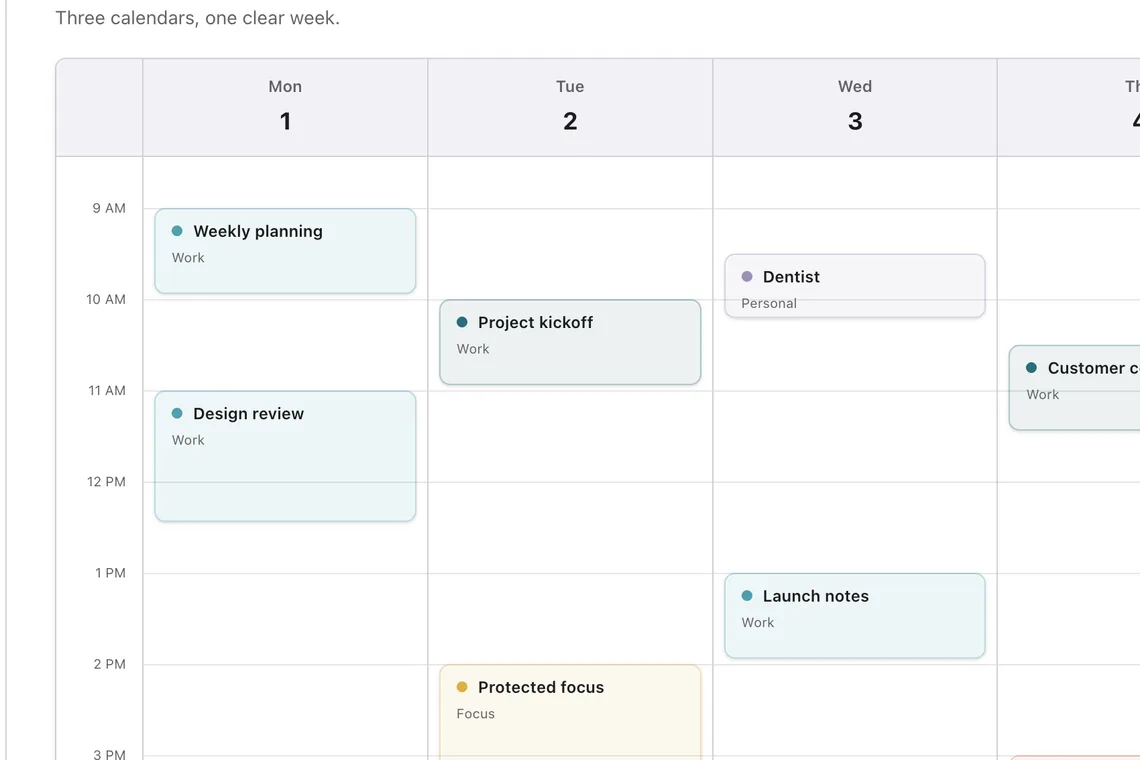
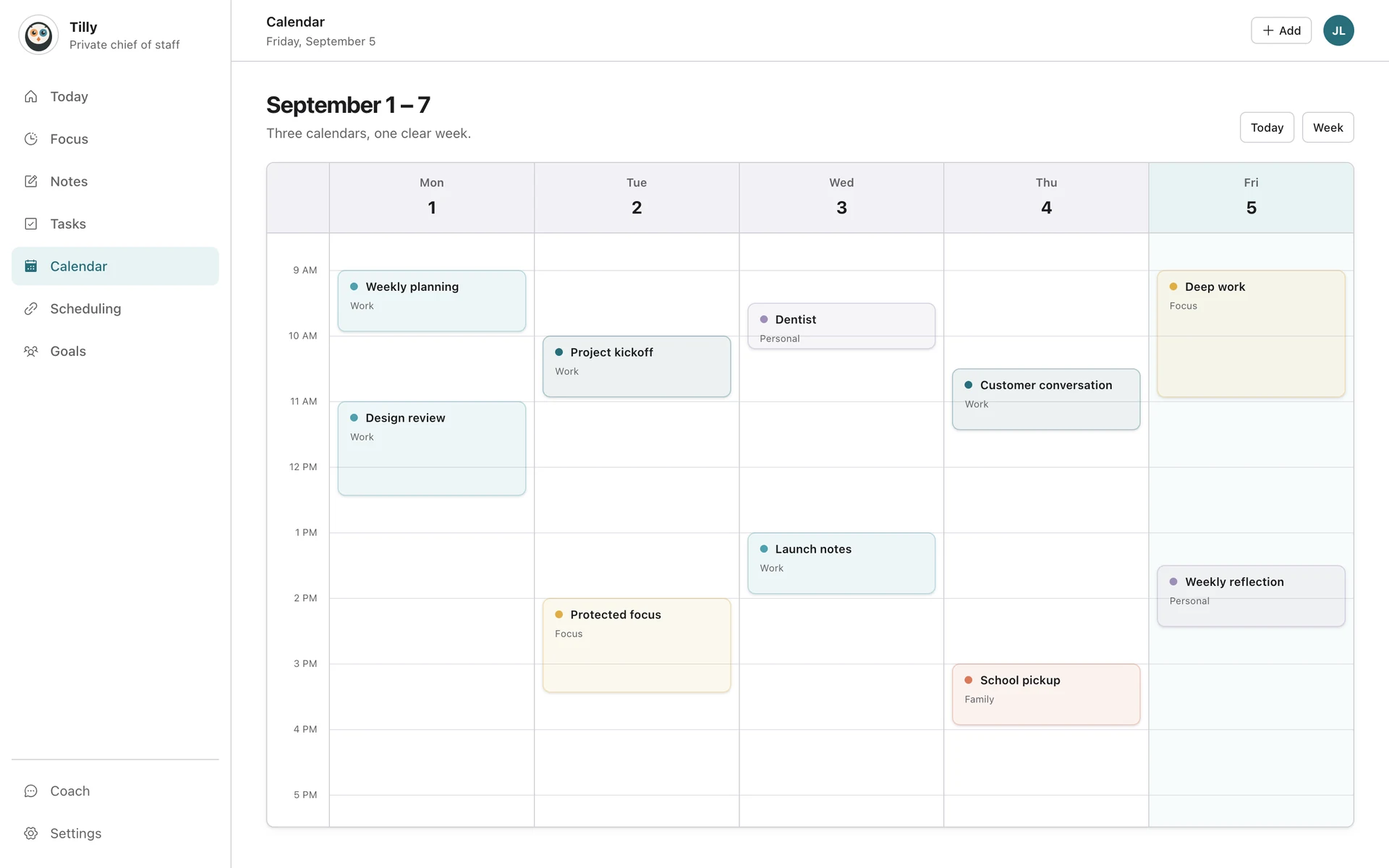
Connect the Google account that owns or has access to the calendar, select only the calendars that affect your availability, and use a temporary event to verify updates in both directions.
Connect the right Google account
Open Connections, choose Google Calendar, and select the Google account that owns the calendars you need. Review the permissions shown by Google, then approve calendar access.
Add another Google account
Repeat the connection flow when work and personal calendars use different Google accounts. Tilly keeps the accounts separate while showing their selected calendars in one view.
Choose what you see
Show the calendars that affect your availability. Hide birthdays, holidays, rooms, and archived project calendars unless they change a decision you make during the day.
Test an update
Create a temporary event in Google Calendar and confirm that it appears in Tilly. Change the start time, check the update, and delete the test event.
Keep event ownership clear
When you create or move an event, check the selected Google account and calendar before saving. A combined view does not merge the underlying accounts. The event remains in its chosen Google calendar and follows that calendar's sharing and notification settings.
Check subscribed and delegated calendars
Calendars listed under Other calendars or shared by another person may have narrower permissions than calendars you own. Confirm access in Google Calendar on the web first. If the provider view cannot edit an event, Tilly cannot grant additional access.
Expected result
Every selected Google calendar is visible in the combined schedule, changes made in Google reach Tilly, and each event keeps a clear source. Hiding a calendar in Tilly should remove it from the view without deleting it from Google.
Fix a shared calendar
If a shared calendar is missing, open Google Calendar on the web and confirm that it appears under the connected account. Your permission may allow you to view an event without editing it.
Reconnect after a permission change
If your organization removes access or you revoke Tilly in Google settings, reconnect the account from Connections. Tilly cannot restore a permission that Google or an administrator has blocked.
Diagnose a missing event
Open Google Calendar on the web and inspect the event there. Confirm its calendar name, the signed-in Google account, and your access level. Then match that account and calendar in Tilly. If other events from the same calendar appear, allow time for the latest provider update before reconnecting.
Common Google Calendar questions
Can I connect two Google accounts?
Yes. Run the Google connection flow once for each account, such as work and personal. Select calendars inside each connection rather than copying events between accounts.
Why can I see an event but not edit it?
The calendar owner controls your permission. View-only or free-busy access does not become edit access when the calendar appears in Tilly.
How do I combine Google with iCloud or Outlook?
Connect each provider separately using the iCloud guide or Outlook guide. Then use the setup checklist to verify that the combined schedule is complete without becoming noisy.