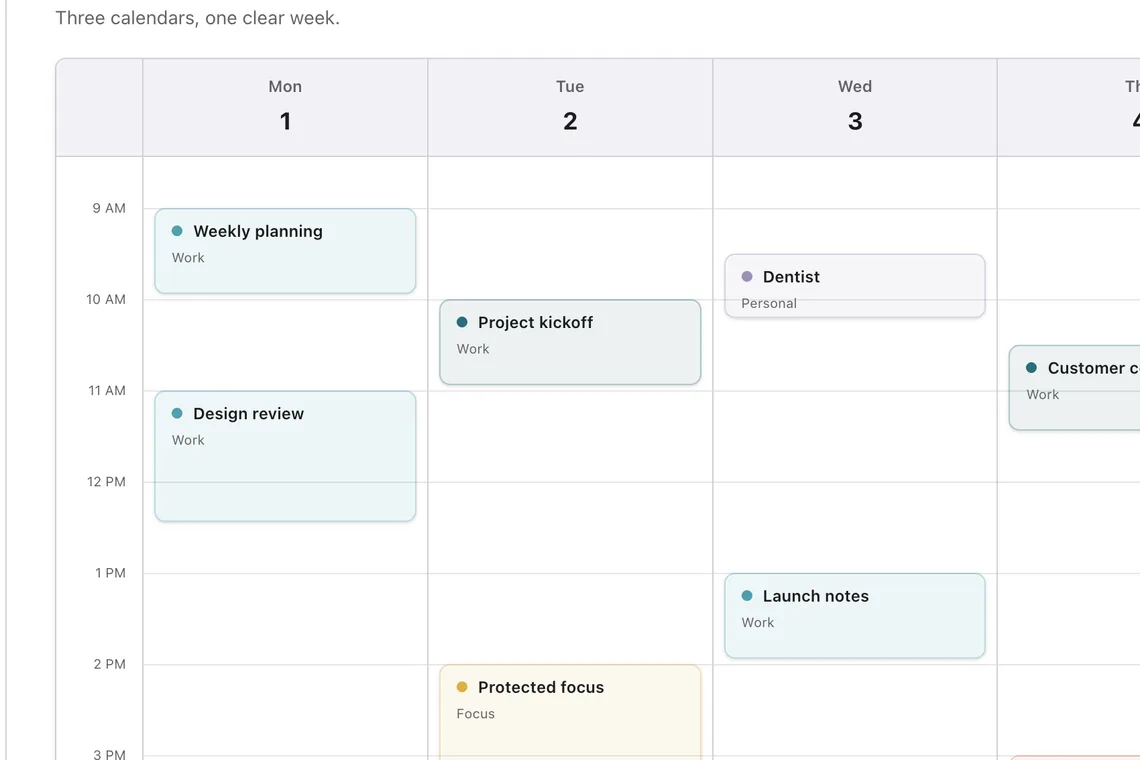
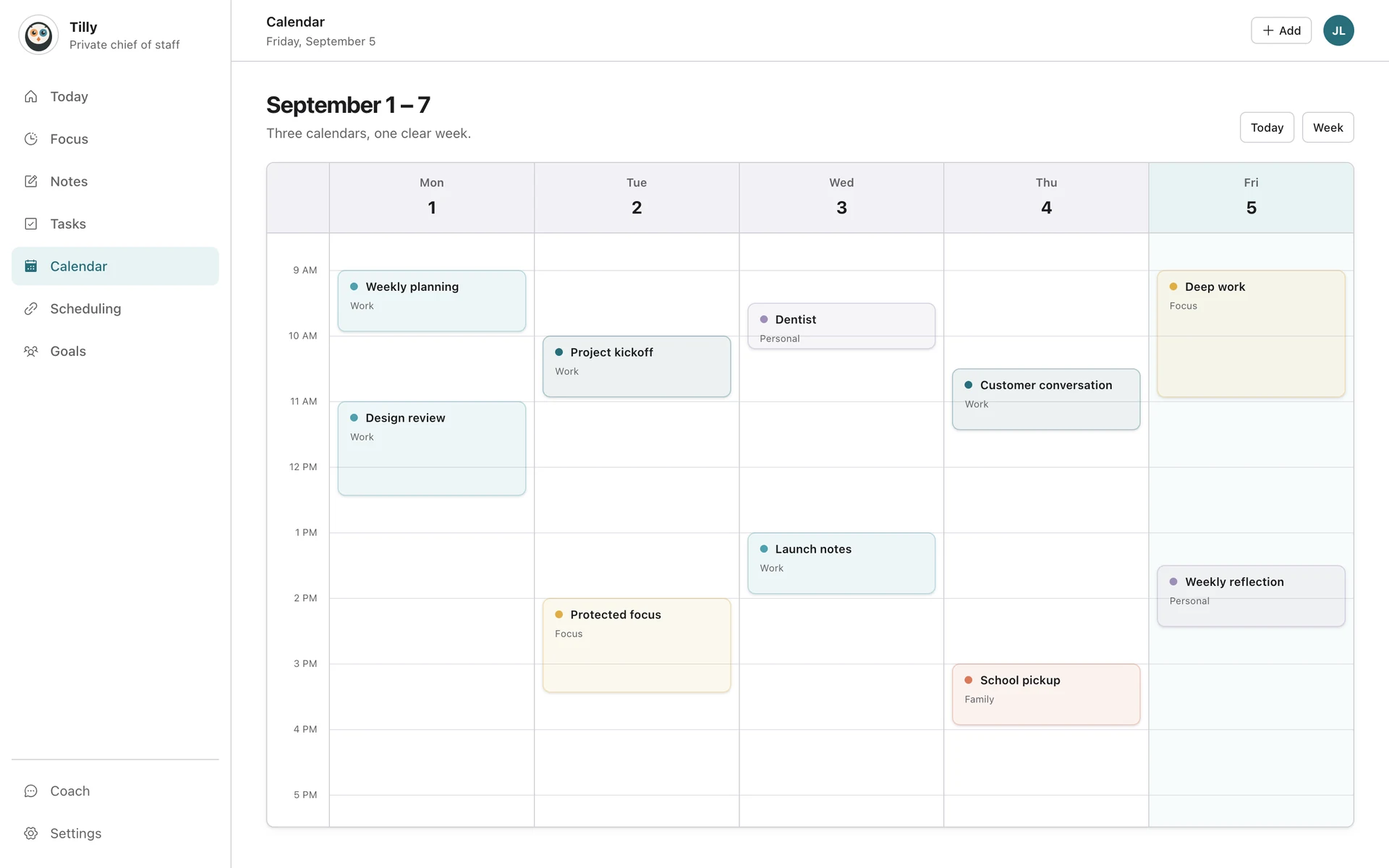
Connect the Apple Account that can already see the calendar, approve calendar access, select the individual calendars in Tilly, and verify the connection with a temporary event.
What you need
Use the Apple Account that owns the calendars you want to see. Shared iCloud calendars appear only after the owner has invited that account and you have accepted the invitation.
Connect the account
Open Connections in Tilly, choose iCloud, and follow the Apple sign-in steps. Approve calendar access when Apple asks. Tilly cannot show an iCloud calendar until that permission is active.
Choose individual calendars
Select the personal, family, and shared calendars that affect your day. Leave unused calendars hidden. Hiding a calendar in Tilly does not delete it from iCloud.
Confirm that sync works
Create a temporary event in Apple Calendar, then open Tilly and confirm that the event appears. Move the event once and check the new time. Delete the test after the update reaches Tilly.
Understand iPhone calendar permission
The Apple Account connection and the iPhone calendar permission solve different parts of setup. If iOS reports that calendar access is off, open iPhone Settings, find Tilly, and review Calendars access. Turning access back on does not change which individual calendars you selected inside Tilly.
Check shared calendar ownership
A shared calendar keeps its original owner and permission rules. Tilly can show only what the connected Apple Account is allowed to see, and an event may remain read-only. Ask the owner to change sharing access in Apple Calendar if you need edit permission.
Expected result
The selected iCloud calendars appear beside your other accounts, new provider-side changes reach Tilly, and hidden Apple calendars remain absent from the combined view. Event ownership stays with iCloud throughout the connection.
Fix a missing calendar
Check that the calendar is visible in Apple Calendar first. If it is shared, confirm that the invitation was accepted with the same Apple Account connected to Tilly. Then reopen Connections and refresh the account.
Disconnect safely
Disconnecting iCloud removes the account from Tilly. It does not delete events or calendars stored by Apple.
Use a clean recovery sequence
If an event is still absent, note its calendar name and confirm the event in Apple Calendar. Check iPhone calendar permission, reopen Tilly, and refresh the connection. Disconnect and reconnect only after those checks, because reconnecting cannot repair an invitation that the Apple Account never accepted.
Common iCloud questions
Can Tilly show a Family calendar?
Yes, when the connected Apple Account can already see the Family calendar and the calendar is selected in Tilly. Accept any pending sharing invitation in Apple Calendar first.
Does Tilly move iCloud events into its own calendar?
No. The connected view reads the calendars you selected, while event ownership and sharing rules remain with iCloud.
Can I combine iCloud with a work calendar?
Yes. After iCloud works, follow the Google Calendar guide or Outlook guide. The setup guide explains how to keep the combined view useful without showing every available calendar.