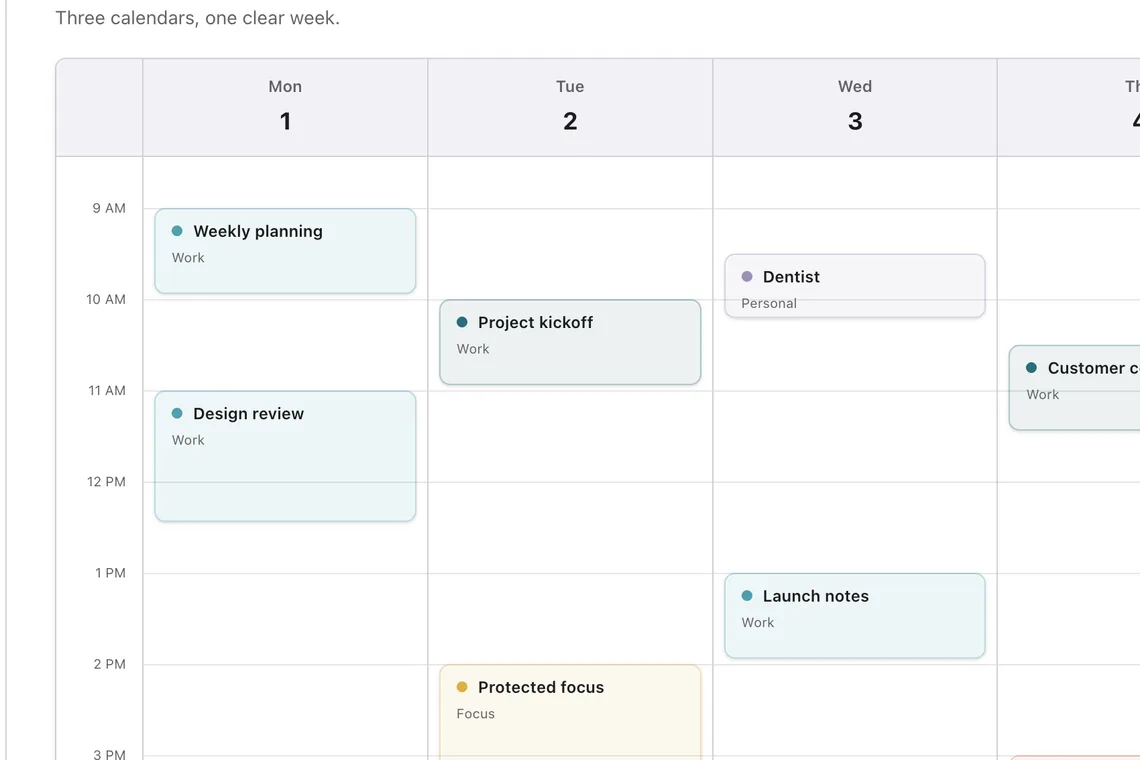
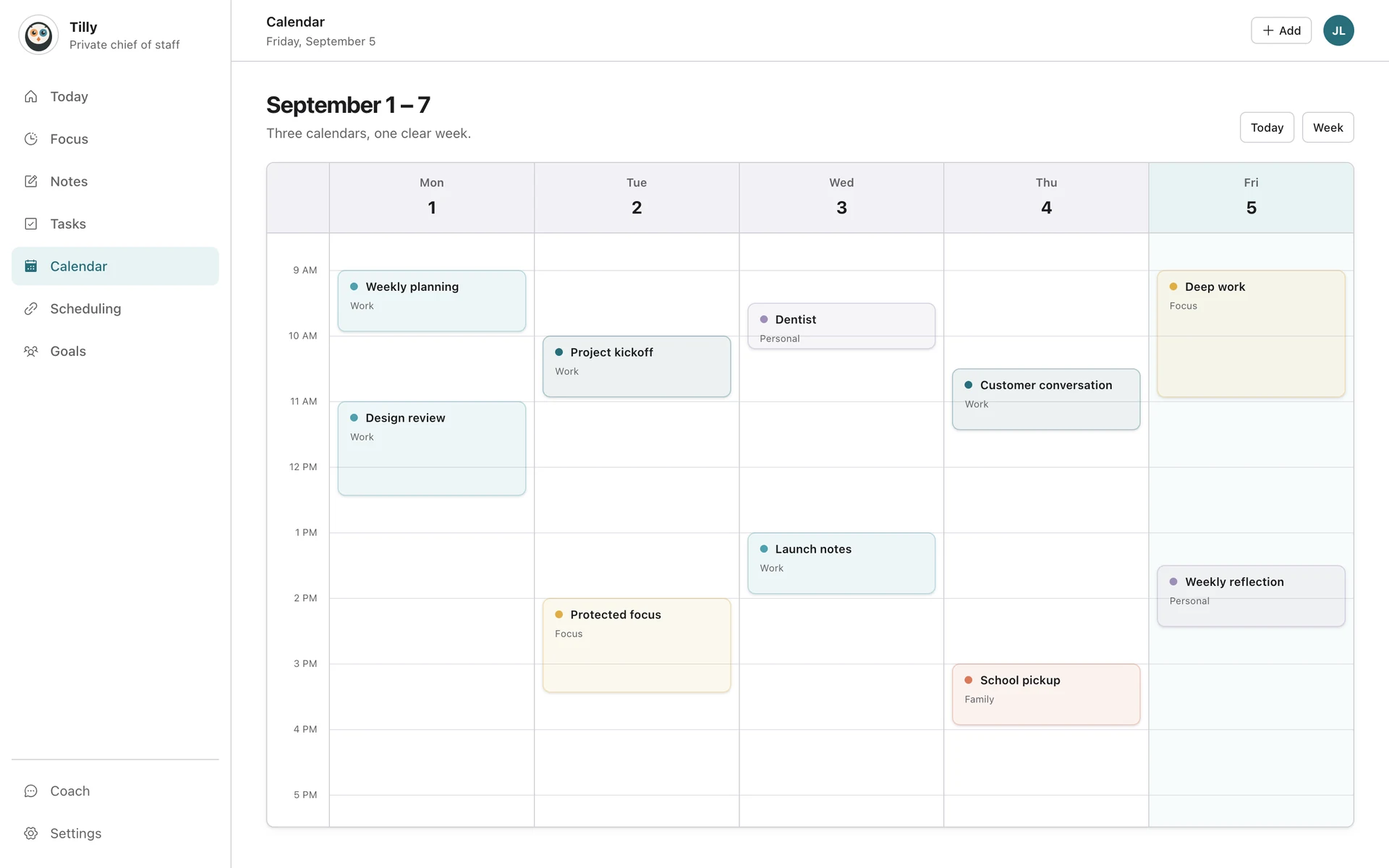
Sign in with the Microsoft account that owns the calendar, approve the requested access, choose the useful calendars, and verify a temporary Outlook event before relying on the combined view.
Check your organization policy
Work Microsoft 365 accounts can require administrator approval for third-party apps. If your company blocks the connection, ask the administrator which calendar clients are approved. Do not publish a private work calendar as a workaround.
Connect Outlook
Open Connections in Tilly, choose Microsoft Outlook, and sign in with the account that owns the calendar. Review the Microsoft permission screen and approve calendar access.
Select calendars
Choose the work, personal, shared, or team calendars that affect your schedule. Hide resource calendars and old projects that do not change your availability.
Check the connection
Create a temporary event in Outlook, then confirm that it appears in Tilly. Move the event and check the new time before deleting it.
Know which Microsoft account is active
Personal Outlook.com and managed Microsoft 365 accounts can use similar sign-in screens. Check the address shown in Connections after sign-in. If you selected the wrong tenant or account, disconnect it and repeat the flow with the intended address.
Treat team calendars carefully
A team, room, or delegated calendar may be useful for context without representing your availability. Show it only when its events change your daily decisions. Keep your own work calendar selected for conflict checks and focus blocks that colleagues must respect.
Expected result
Selected Outlook calendars appear with their source intact, provider-side changes reach Tilly, and read-only events remain visibly read-only. Tilly should not require you to publish or copy company calendar data into a personal account.
Understand read-only access
A shared calendar can be visible without allowing edits. Keep important changes in Outlook unless Tilly shows that the connected account has permission to edit the event.
If sign-in stops working
Open Connections and reconnect the account. If Microsoft still refuses access, send the error text to your administrator because the restriction belongs to the organization account.
Diagnose a missing event
Find the event in Outlook first and note whether it belongs to your default calendar, a shared mailbox, a team calendar, or another Microsoft account. Check that exact source in Tilly. When the source itself is absent, confirm its sharing permission in Outlook before reconnecting.
Common Outlook questions
Can Tilly bypass administrator approval?
No. A Microsoft 365 administrator can restrict third-party access for the organization. Ask for an approved connection rather than forwarding or publishing private company calendar data.
Can I use Outlook.com and Microsoft 365 together?
Yes, when each account permits the connection. Add them separately and keep their destination calendars clear when creating events.
How do I add a personal calendar beside Outlook?
Use the iCloud connection guide or Google Calendar guide, then complete the checks in Set up Tilly.