The shortest setup path is: install Tilly, connect each account that affects your availability, show only the calendars you use, and verify one test event before planning the day.
Before you begin
Install Tilly from the App Store and have the sign-in details for each calendar account ready. If your employer controls Microsoft 365 access, confirm that third-party calendar apps are allowed before you start.
Decide which accounts belong in Tilly
List the calendars you consult before accepting a meeting: usually a work calendar, a personal calendar, and any family or shared calendar that can make you unavailable. Connect the account that owns each one. You do not need to connect an account just because it contains an old or reference-only calendar.
Connect the calendars that can claim your time
Open Connections, choose your provider, and finish its sign-in flow. Add work, personal, family, and shared calendars that affect whether you are available. You can connect another account from the same provider when your schedules use separate logins.
Use the provider-specific steps when a connection needs extra attention: connect iCloud Calendar, connect Google Calendar, or connect Outlook and Microsoft 365.
Choose what appears
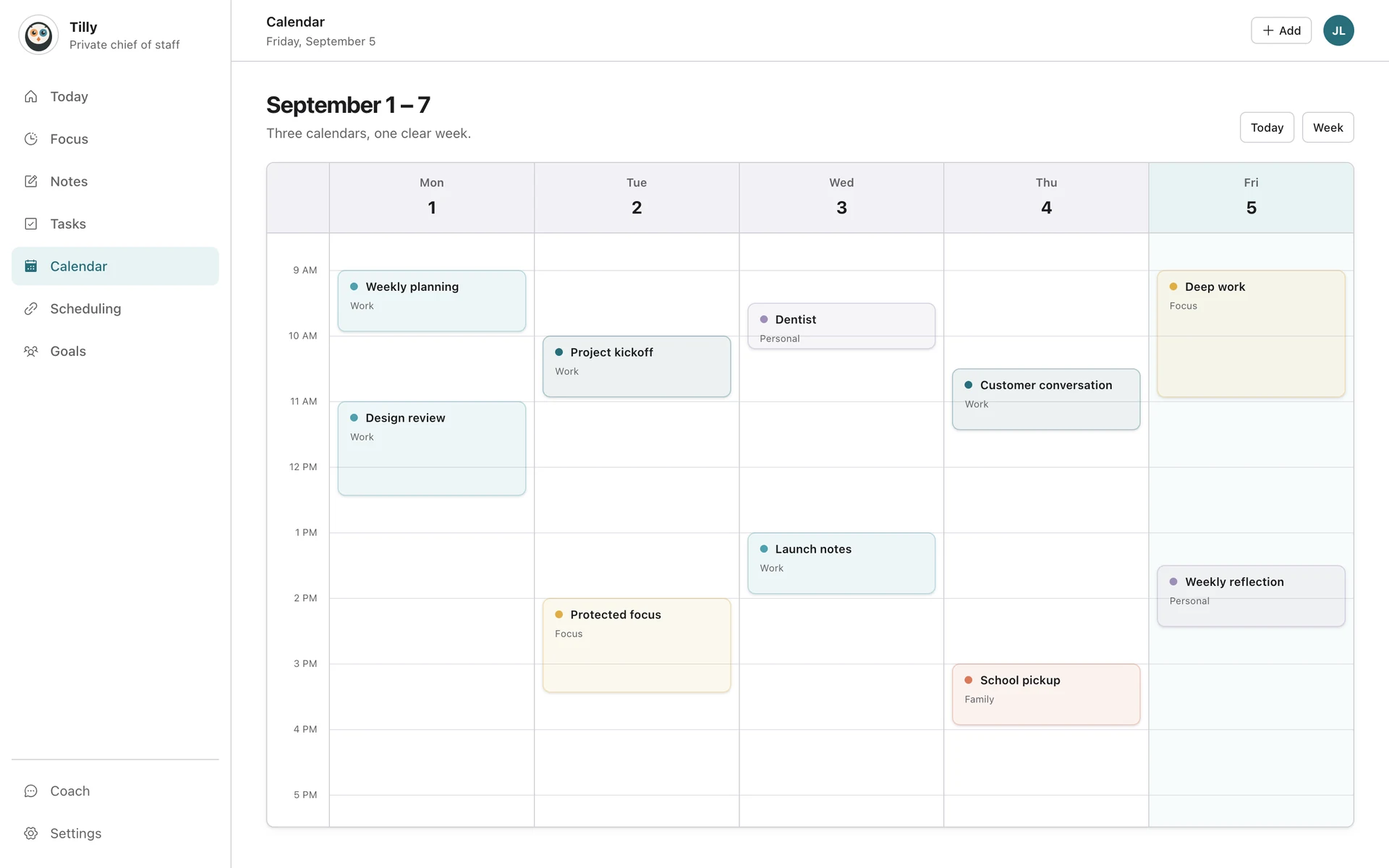
Turn on the calendars that change your daily decisions. Hide holiday feeds, old projects, and other calendars that add color without affecting your plans. Hidden calendars remain connected and can be shown again later.
Check the result
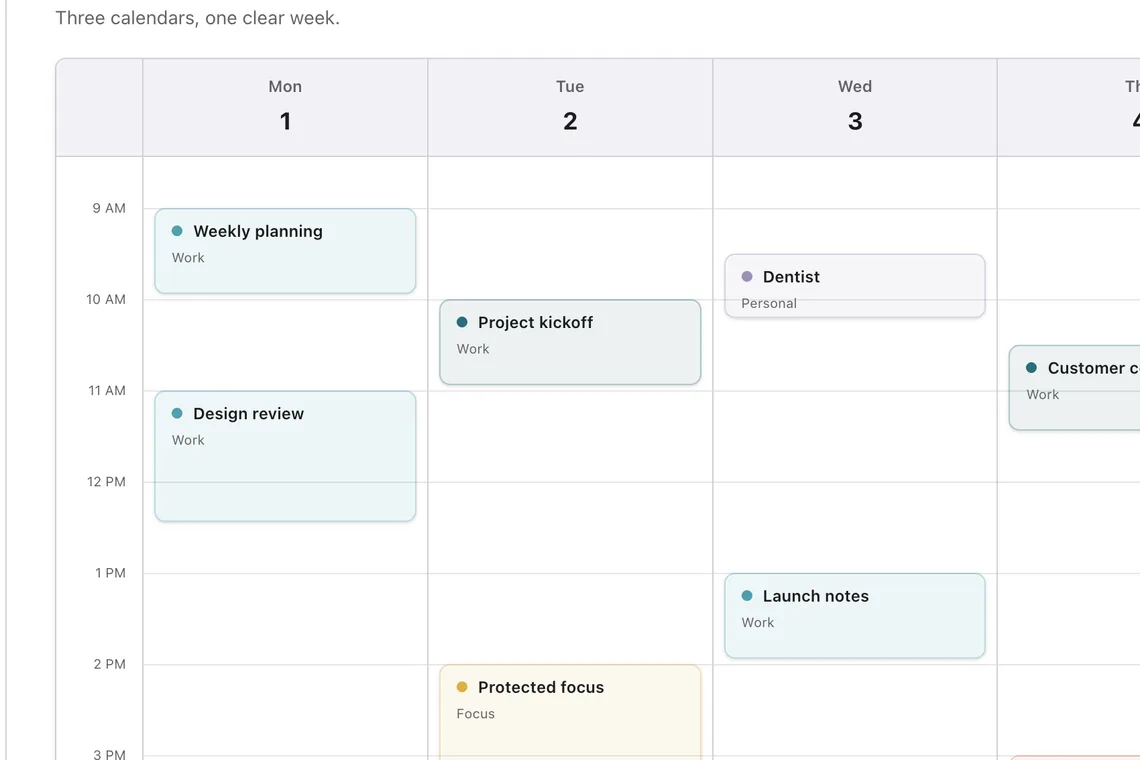
Open Today and confirm that the next event from each important account appears. Then open the week view and compare it with the provider calendars. Create a temporary event if you need a safe way to test updates, then delete it.
Shape the first Today view
Add the tasks that need attention today. Keep the list short enough to scan between meetings. Tilly keeps the complete calendar one step away when you need more context.
Choose where new events belong
Before creating a real event, check the destination calendar shown in the composer. Use a work calendar for commitments that colleagues or booking tools need to see. Use a personal calendar for private plans, and keep the title neutral if you intentionally block work availability with a personal commitment.
Review notification access
Allow notifications only if you want Tilly to deliver reminders and timely planning alerts. The calendar connection and notification permission are separate: your events can sync even when alerts are off. You can change notification access later in iPhone Settings.
Expected result
Today should show the next relevant commitment, the week view should match the selected provider calendars, and each event should retain a recognizable calendar color or source. You should be able to describe the current plan without checking a second calendar app.
If something is missing
Return to Connections and check that the account is active and that the individual calendar is visible. A shared or subscribed calendar may update more slowly than a directly connected calendar.
Troubleshoot one layer at a time
First confirm that the event exists in Apple Calendar, Google Calendar, or Outlook. Next confirm that the correct account is connected. Finally check that the individual calendar is visible in Tilly. This order separates a provider problem from an account problem and a visibility setting.
Common setup questions
Can I connect work and personal calendars?
Yes. Connect each provider account separately, then choose the individual calendars you want in the combined view. Tilly does not merge ownership: every event stays in its original provider calendar.
Will hiding a calendar delete its events?
No. Hiding changes the Tilly view only. The calendar and its events remain with Apple, Google, or Microsoft and can be shown again later.
What should I do after setup?
Read Understand Today to turn the connected schedule into a short daily check, then use Protect focus time when an open window needs to remain available.