What is the best calendar app for multiple calendars?
The best app is the one that connects every provider and account that can claim your time, keeps calendar ownership clear, and lets you check the complete day before making a commitment. Provider support matters more than a long list of secondary features.
Start with your actual mix. Write down each Google, Outlook, iCloud, shared, family, school, and booking calendar. An app that handles three Google accounts but cannot connect your managed Microsoft 365 schedule may not solve the problem.
If you are juggling multiple accounts across work and personal life, judge every candidate on one question before any feature comparison: after connecting everything, does one screen show a day you would commit to without opening a second app?
Test provider support at the account level
An integrations page may show the right logos without answering the difficult questions. Check whether the app supports several accounts from one provider, shared calendars, subscribed feeds, and the edit permissions you need.
Test a managed work account first. Organization policy can block a connection even when personal Outlook accounts work. Do not use a public feed as a workaround for confidential company data.
Choose the view you will use every day
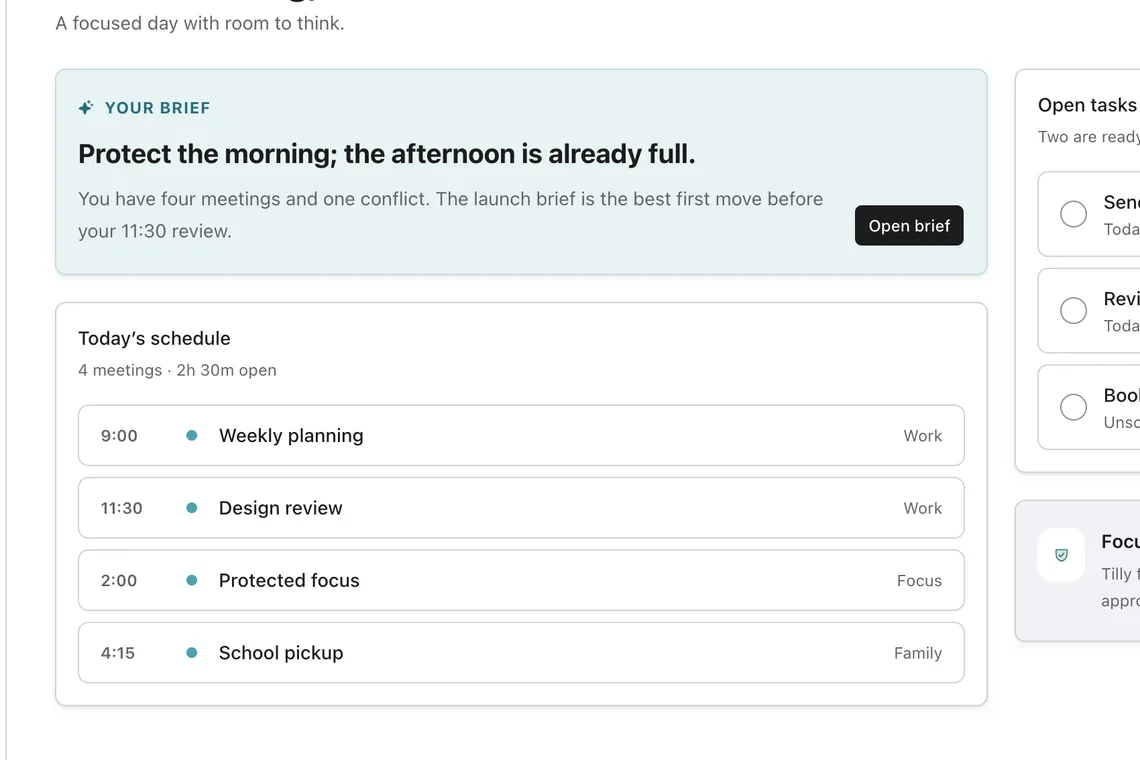
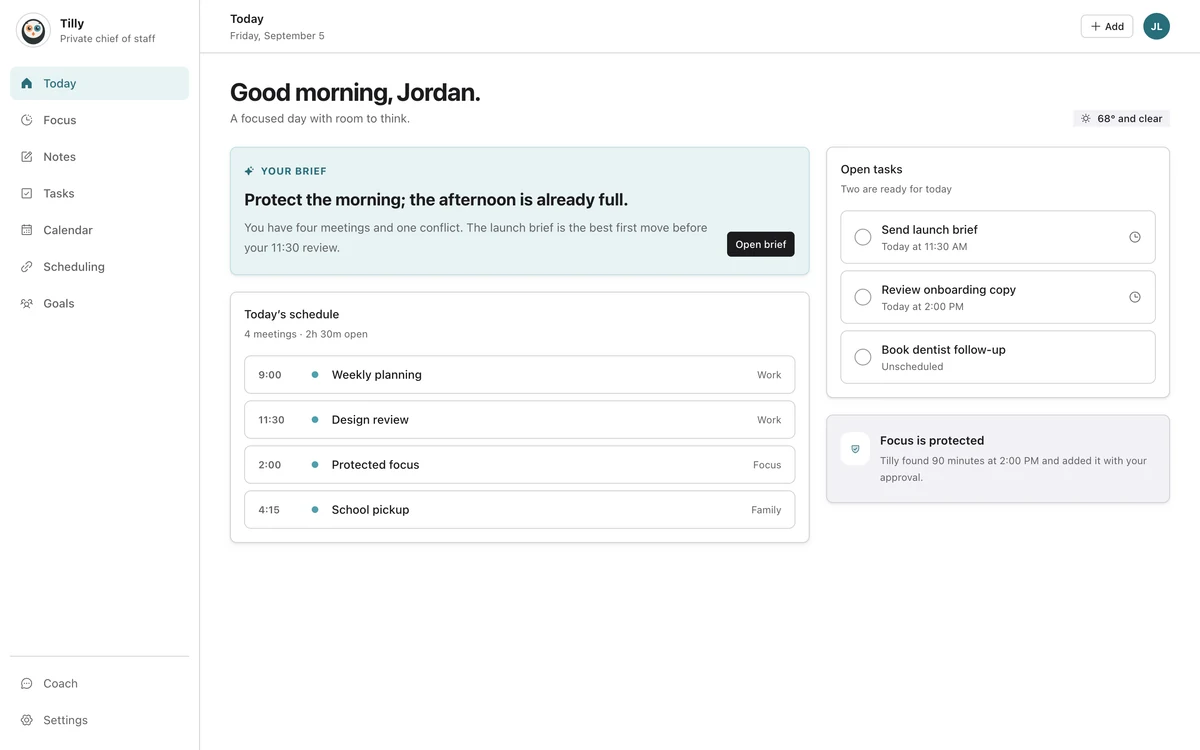
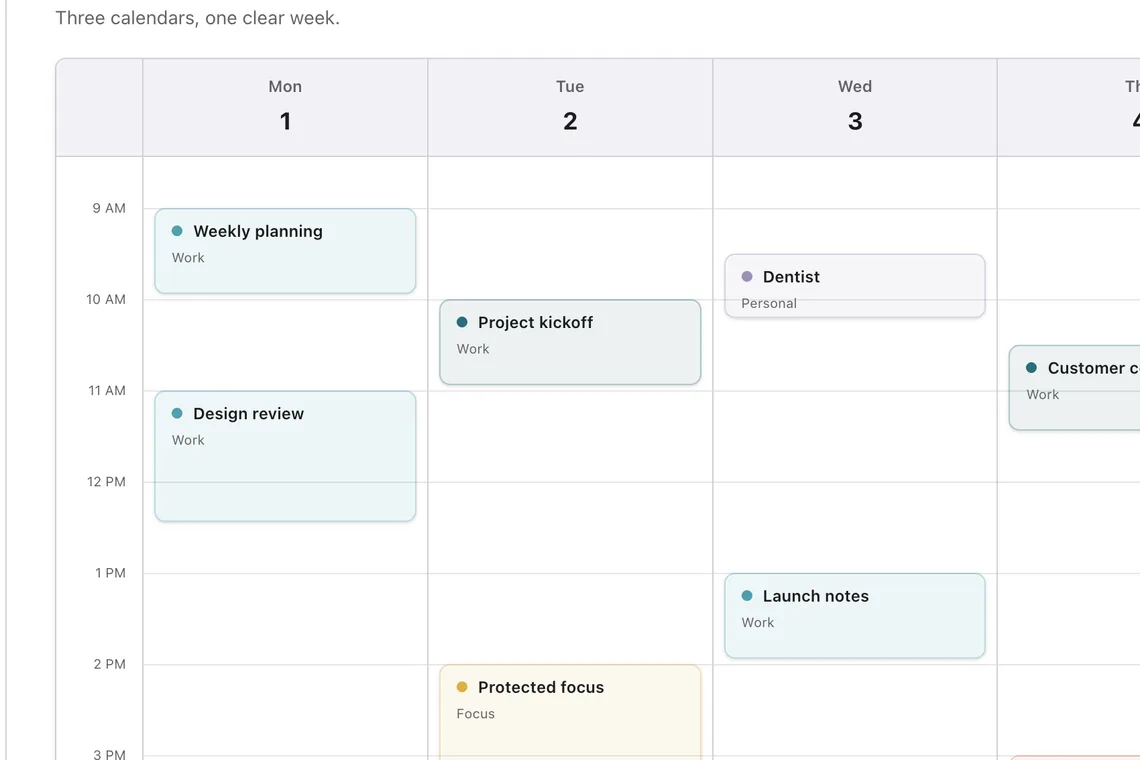
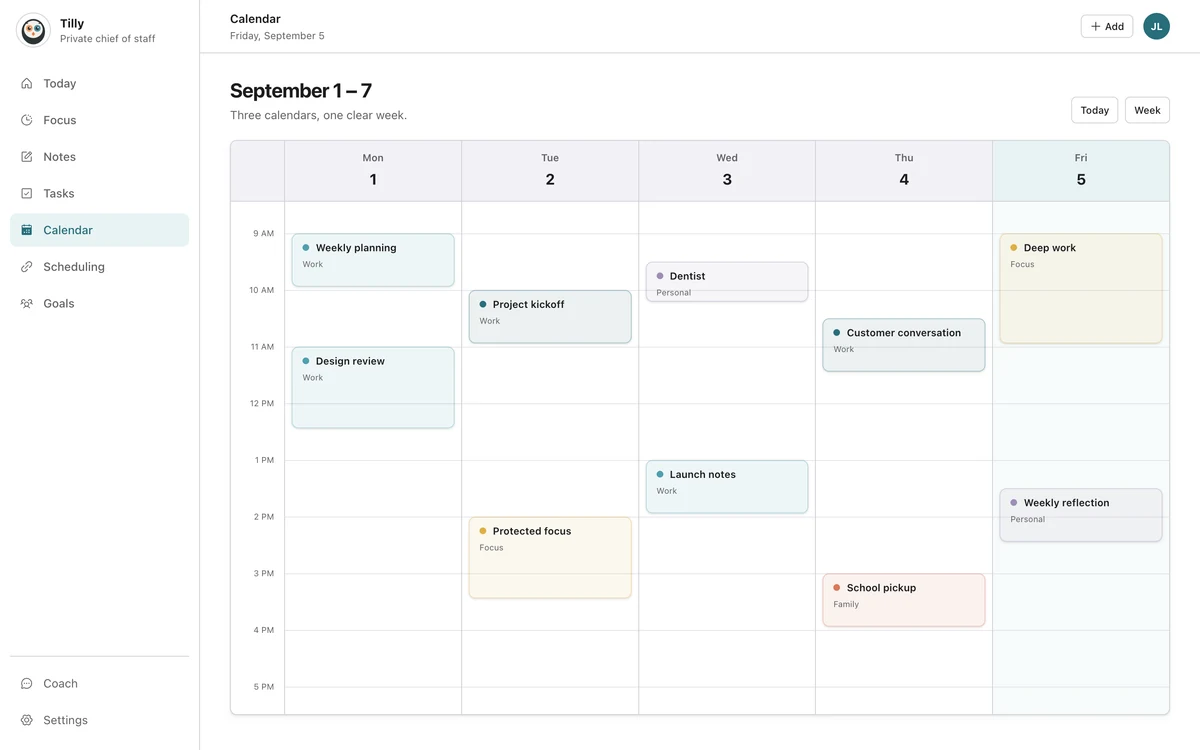
A combined day view should reveal the next event, overlaps, and usable open time. A week view should make tradeoffs across several days visible without constant filtering. Use the questions in designing a Today view that knows what to leave out to test whether the daily surface is actually making decisions easier.
On iPhone, check whether the important actions work with one hand and whether a busy day remains readable. On the web, look for enough room to compare the week. The devices should share the same schedule even when their layouts differ; building across iPhone and web explains why identical layouts are not the goal.
Keep availability accurate across personal and work calendars
Availability is the number most likely to be wrong when calendars live in separate accounts. A slot looks open in the work account because the commitment that fills it sits in the personal one. The error only becomes visible when someone books over it.
Test three things before trusting a combined view. Whether the app reads every account when it works out free time, not only the one you are looking at. Whether a busy block created in one account is visible from the others. And whether anything that hands out your time, such as a booking page, reads the same complete picture rather than a single calendar.
That last point is where most stacks break. A scheduling link connected to one work calendar will happily offer a Tuesday evening that your family calendar already owns. Tilly's booking links work out free time from every connected calendar you keep visible, not from one chosen account, which is the behaviour to look for whether or not the tool is Tilly.
If you are comparing calendar sync apps specifically, check whether the tool copies events between accounts or reads them into one view. Copies can go stale and leak personal titles into a work calendar; a single view cannot help a separate tool that only reads one account. Tilly’s calendar sync page sets out which model Tilly uses.
- Free time is calculated from all connected accounts, not the active one.
- A busy block made in one account suppresses offers in the others.
- Booking pages and scheduling links read the same combined view.
- Declined and tentative events are handled the way you expect.
- Availability updates within minutes of a change, not on the next manual refresh.
Check how the app treats privacy boundaries
A combined view should preserve the source account and calendar. Ask whether personal event titles stay in the personal account, what a busy block shares, and which actions write data to another provider.
Look for visible account controls, individual calendar visibility, disconnection guidance, and a clear account-deletion path. A privacy policy matters, but the everyday controls show how the promise works in practice. The standard is useful context without a data appetite: every permission should earn its place.
Decide how much automation you want
Some products schedule tasks automatically and keep replanning the day. Others show open time and wait for the user to choose. Neither model is universally better.
Choose automatic planning when a large task backlog and frequent rescheduling justify the machinery. Choose a calmer daily companion when you want context, conflict help, and explicit calendar actions without continuous rearranging. In that model, the calendar should help you leave it once the next decision is clear.
Test tasks and focus time with a real week
Bring in the tasks that genuinely need time, then protect one focus block. Check whether the block lands on the correct calendar, whether booking systems respect it, and whether moving it is understandable.
Avoid evaluating from an empty demo account. A calendar app reveals its quality when several providers, shared events, recurring meetings, and an imperfect task list arrive together.
Compare the failure states
A polished happy path is not enough. Disconnect an account, hide a shared calendar, restore a purchase, and inspect a read-only event. The app should explain what happened and how to recover.
Failure is part of calendar work because providers expire sessions, administrators change policy, and shared access changes. Dependability includes these ordinary repairs.
A practical comparison checklist
- Every required provider and account connects.
- Shared and subscribed calendars appear with clear permissions.
- Day and week views remain readable with real data.
- Events retain their account and calendar identity.
- Conflict checks include the calendars that matter.
- Focus blocks save to the intended destination.
- Privacy and deletion controls are easy to find.
- The free and paid limits match your schedule.
Score the app on the jobs you repeat, not the number of menu items. A feature used twice a year should not outweigh the daily view you open five times a day.
Where Tilly fits
Tilly is built around iPhone as the daily center and the web as a wider planning view. It combines iCloud, Google Calendar, and Microsoft Outlook, keeps the selected calendars visible together, and brings tasks, conflict checks, and focus protection close to the schedule.
It is a fit for people who want one clear plan across work and personal life while keeping meaningful calendar changes explicit. People who want an automatic project scheduler or broad team project management may prefer a different operating model.
Questions people ask
How do I keep my availability accurate across personal and work calendars?
Connect every account that can claim your time, keep the calendars that represent real commitments visible, and check that whatever hands out your time reads all of them. Then verify it once with a real booking: hold a slot in the personal account and confirm the work-side scheduling link stops offering it.
Which app is best for juggling multiple accounts?
The one that connects your exact provider mix and still gives a readable day. Count the accounts first, then test the daily view with a busy real week rather than a demo. For a quick check, run a five-minute test for any calendar app. If the day only makes sense after filtering, the app is storing your calendars rather than combining them. A tool positioned as an AI chief of staff should be judged on the same test, not on the label.
Can one calendar app manage multiple Google accounts?
Many can, but verify the exact product. Connect each account separately and test shared calendars, edits, and colors before relying on the combined view.
Do I need to pay for multiple calendar connections?
Plan limits vary. Count the accounts and calendars you need, then compare the free and paid limits. Include future shared or work accounts if a limit would quickly become a problem. For Tilly’s own approach, read what we learned from the first month of Pro.
Is automatic scheduling better than manual planning?
It is better when continuous task placement solves a real workload problem. Manual confirmation is better when priorities are nuanced, privacy boundaries matter, or you want fewer schedule changes.
What should I test before switching calendar apps?
Test every provider, a shared calendar, one event edit, one conflict, one focus block, and the busiest real day you can safely use. The result should be a plan you can trust without opening several apps.